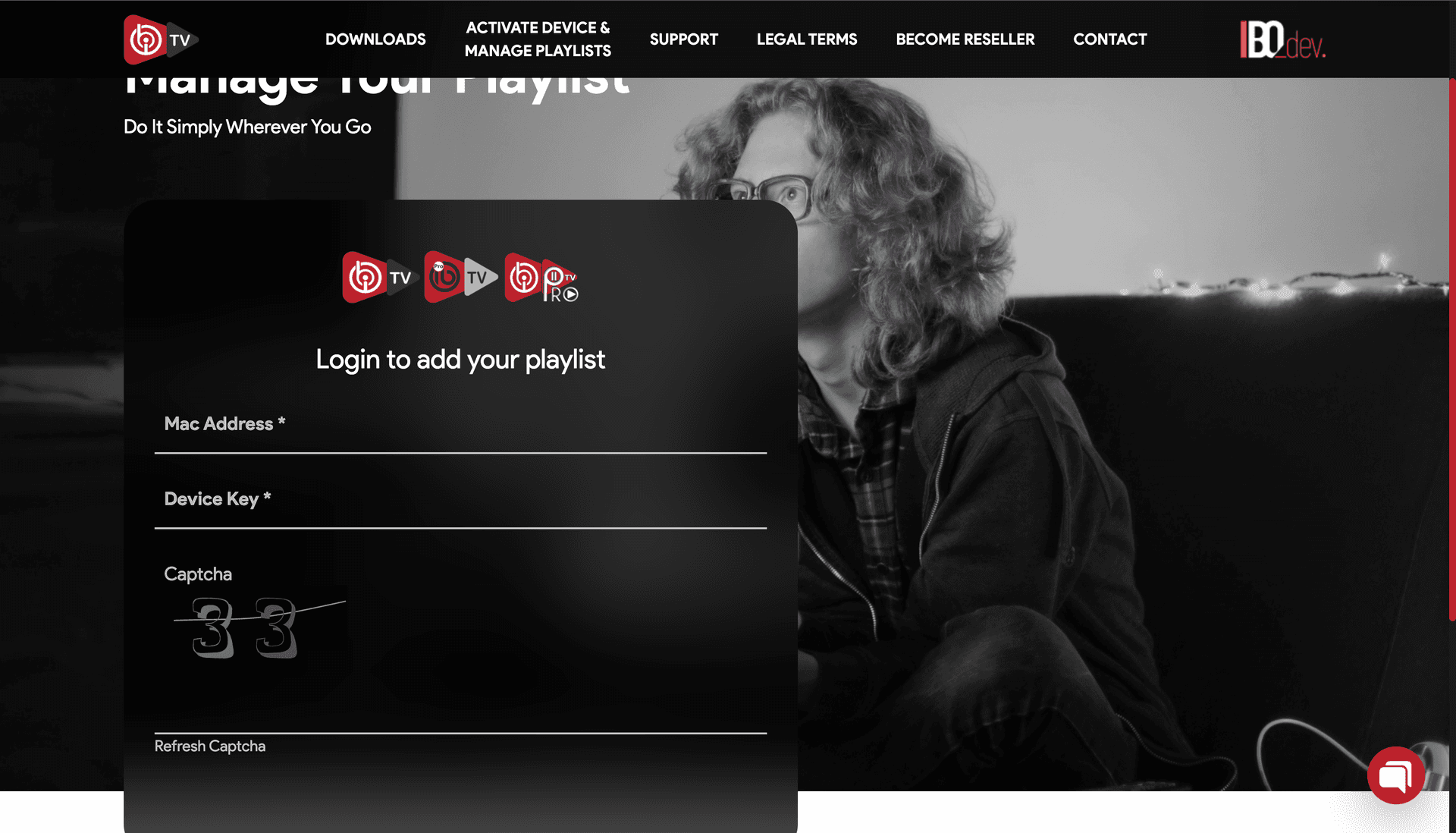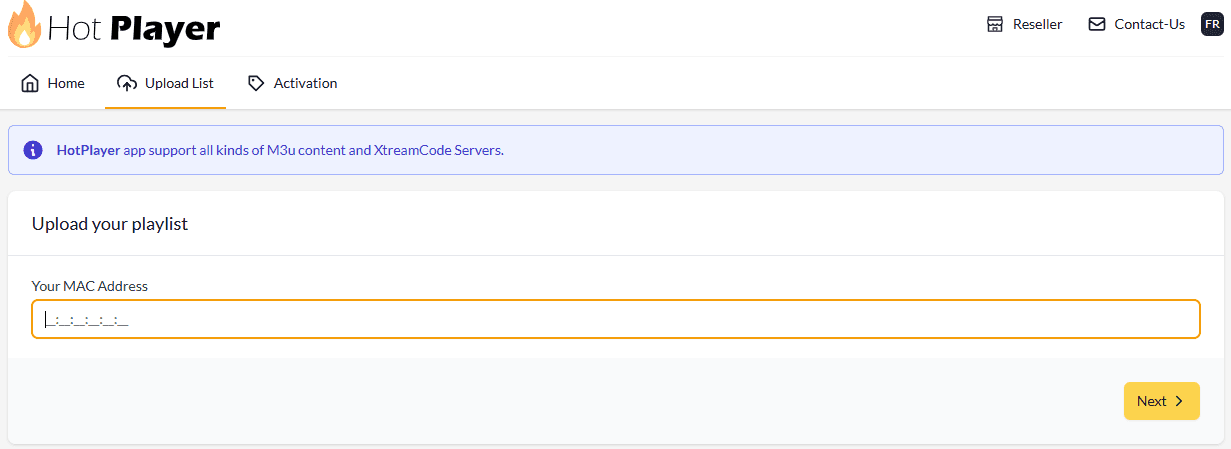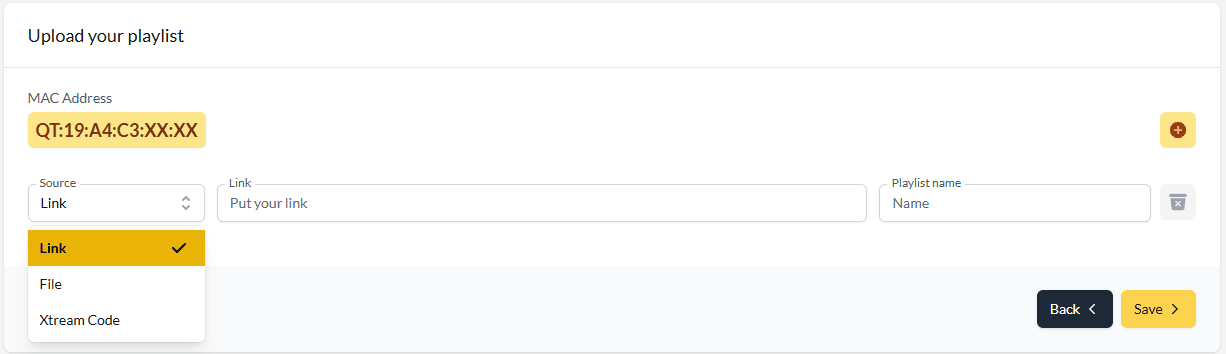
Install a player
Open the LG Content Store, search for IBO Player or Hot Player, then install and open your preferred app.
Smart TV GUIDE
Install a compatible player from the LG Content Store and connect your IPTV Harmony playlist.
◷ Ready in about 5 minutes
Open the LG Content Store, search for IBO Player or Hot Player, then install and open your preferred app.
Keep the MAC address and, for IBO Player, the Device Key visible on your TV. You will enter them on the player website from a phone or computer.
Open your player and enjoy IPTV Harmony. If channels are missing or the picture is not right, our support team will help you fix it.
These examples help you recognize the important screens. The exact layout may vary by app version.
PERSONAL SUPPORT · 7 DAYS A WEEK
Tell us which device you use and what you see on screen. Our support team will help you finish the setup.