← All setup guides

Streaming device GUIDE

Set up IPTV Harmony on Roku TV & Roku Device

Add a compatible playlist player from the Roku Channel Store and connect your access.

◷ Ready in about 5 minutes
Roku TV & Roku Device
Roku TV or Roku device
Your IPTV Harmony access email
Stable internet connection
1

Install a compatible player

Open the Roku Channel Store, search for IBO Player or Hot Player, then install and open the player available in your region.

Player availability varies by country. If neither is shown, use a compatible playlist player or Screen Mirroring from a phone or computer.
2

Connect your player

Option 1 IBO Player
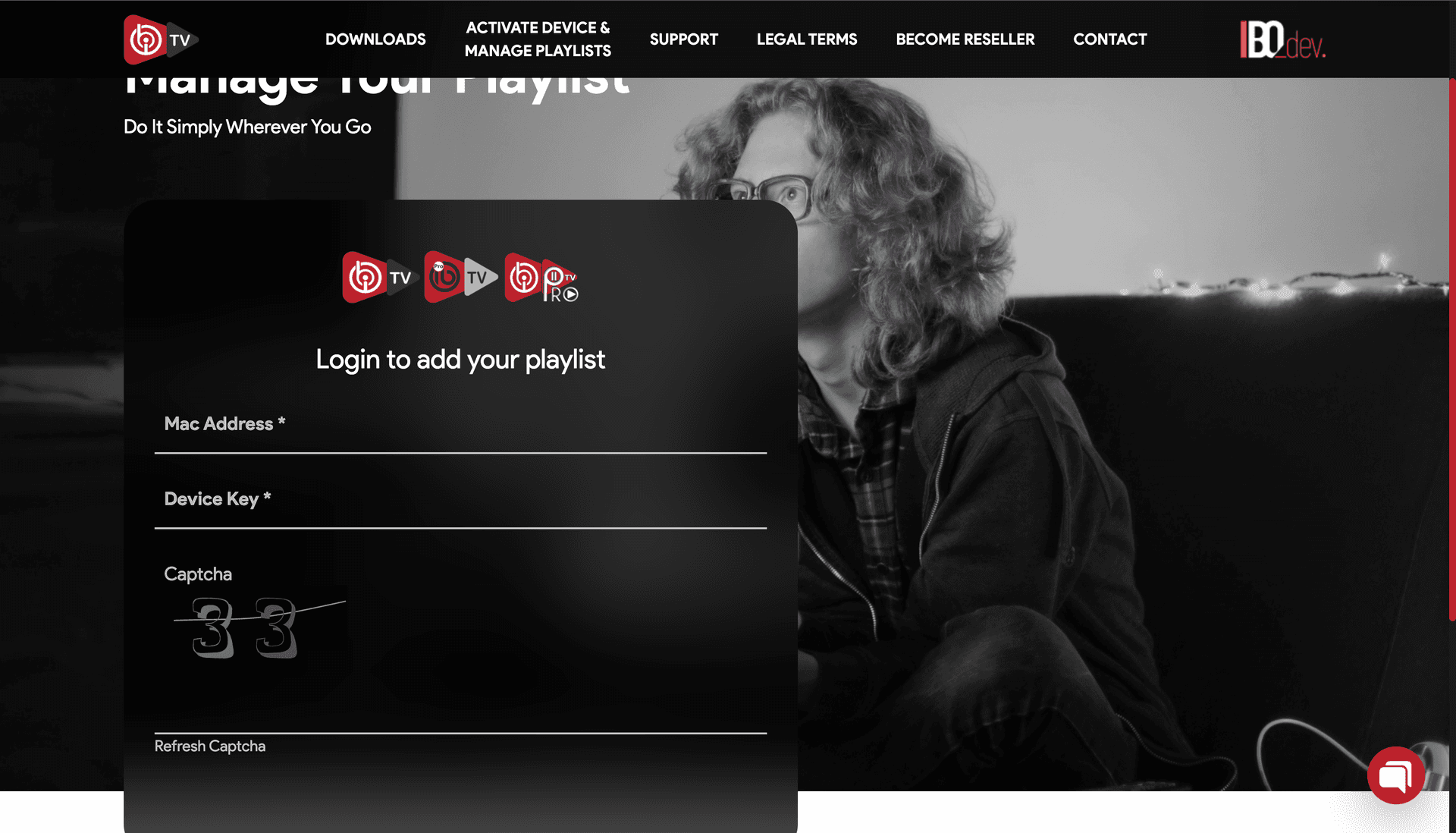
  1. Open IBO Player and note the MAC address and Device Key shown on screen.
  2. On a phone or computer, open the IBO device portal and sign in with those details.
  3. Select Add playlist, name it IPTV Harmony, and paste the M3U link from your order email.
  4. Save, restart IBO Player, and allow a moment for your channels to load.
Option 2 Hot Player
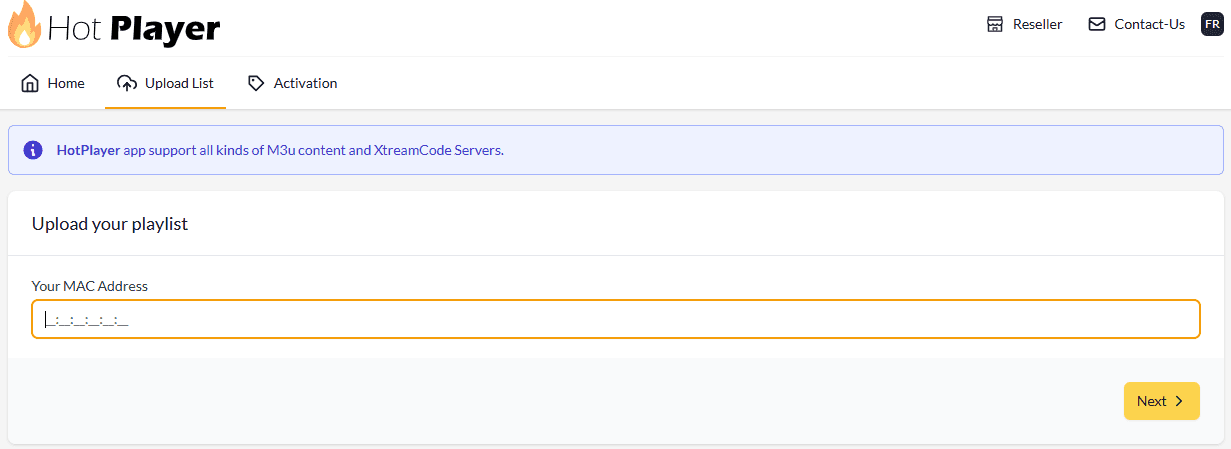
  1. Open Hot Player and note the MAC address displayed on screen.
  2. On a phone or computer, open the Hot Player upload page and enter the MAC address.
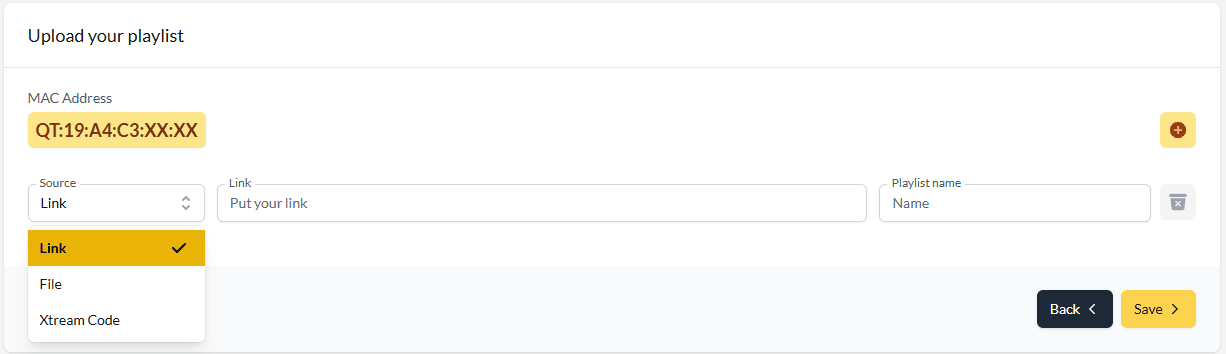
  3. Choose M3U or Xtream Codes, enter the access details from your order email, and name the playlist IPTV Harmony.
  4. Save, restart Hot Player, and wait for the playlist to load.

Your Roku is ready.

Open your player and enjoy IPTV Harmony. If channels are missing or the picture is not right, our support team will help you fix it.

PERSONAL SUPPORT · 7 DAYS A WEEK

Still not connected?

Tell us which device you use and what you see on screen. Our support team will help you finish the setup.